|
|
| Line 1: |
Line 1: |
| [[category:UniKey_Tools]] | | [[category:UniKey Drive VirtualCD-ROM Solution]] |
| :''Note: UniKey Drive only.''
| | [[category:UniKey Application Solutions]] |
|
| |
|
| == UniKey Drive Init Tool == | | = Introduction<br> = |
|
| |
|
| The UniKey Drive Initialization tool is used to set the parameters of and initialise a UniKey Drive device. With the Init tool, settings which can be configured include the size of the general (normal) partition, the size of the password-protected partition, the size and password of the hidden partition and the contents of the read-only partition. These settings can be initialized to one or multiple UniKey Drive devices.
| |
|
| |
|
| === Settings ===
| |
|
| |
|
| In the "Settings" tab, the user can set the partition sizes within UniKey Drive, contents of VCD partition and the password of the password-protected partition.
| | UniKey Drive Virtual CD-ROM could allow the users to store files and the files stored inside of the Virtual CD-ROM will work with the same function as a real CD-ROM. |
| <!--Note that sizes of the partitions affected by size of .iso file-->
| |
|
| |
|
| * To set the contents of the Virtual CD-ROM drive, select the desired .iso to be loaded onto the read-only partition in the [Virtual CD (ISO File)] option. A default .iso image is provided within the same folder at the Init tool in the SDK, containing the UniKey Drive Entry tool "Entry.exe", used for gaining access to the password-protected partition.<br>Please note that an .iso image must be provided to initialise the UniKey Drive device.
| | <br>This article will guide you on how to put files inside of UniKey Virtual CD-ROM. |
| * The size of the Hidden Drive has can be specified under the [Hidden Drive] option, a value between 1 to 1023 in megabytes. This partition is not accessible by any means other than pre-programmed commands using the UniKey Drive API.
| |
| * The General/Protected Drive Physical Capacity slider provides selection over the amount of space allocated to either partition. The normal parition (general drive) is openly accessible, whereas the password-protected partition (protected drive) requires the correct password entered into the Entry tool to access it.
| |
| * Setting the password of the password-protected partition can be done in the [Secure Password] fields.
| |
|
| |
|
| [[Image:UniKey_Init_Tool_Pic01.jpg]]
| |
|
| |
|
| To clear all settings back to the default, click on [Reset]. Current settings can be saved to a .ini file by clicking [Save], and can be later loaded through [Load].
| |
|
| |
|
| All fields must be specified and valid, and a valid .iso image must be given in the Virtual CD-ROM option for initialization to be successful. A error message will appear if settings have not been configured correctly.
| | = Chart = |
|
| |
|
| === Initing ===
| |
|
| |
|
| After settings have been configured in the "Settings" tab, configured settings can be initialized onto the UniKey Drive from the "Initing" tab.
| |
|
| |
|
| [[Image:UniKey_Init_Tool_Pic02.jpg]] | | [[Image:UniKey_Drive_VirtualCD-ROM_Pic01.jpg]] |
|
| |
|
| To initialise multiple UniKey Drive devices with the same settings, tick the [In batch] box, otherwise leave the option unchecked to only initialize one device.
| |
|
| |
|
| After a UniKey Drive device is plugged in, clicking the [Init] button will begin the initialization process and will format the UniKey Drive to preconfigured settings.
| |
|
| |
|
| Warning: All data on the device is deleted during initialization.
| | = Source Files = |
|
| |
|
| :'''Important''': Do not remove the UniKey device until initialization has completed! Failure to do so may render the device inoperable.
| |
|
| |
|
| Once the Progress window outputs "Initialized successfully", the UniKey Drive device can be safely removed.
| |
|
| |
|
| If the [In batch] option is ticked, the following popup will appear.
| | The source files for burning into UniKey Drive CD-ROM can be any types as you want. |
|
| |
|
| [[Image:UniKey_Init_Tool_Pic03.jpg]]
| | <br>The best solution is to use the protected application as the source files, and then you only need to send the UniKey Drive dongles stored with your protected software to your end users. |
|
| |
|
| Remove and insert the next UniKey Drive as needed, clicking [Cancel] when finished.
| |
|
| |
|
| === Record ===
| |
|
| |
|
| In the "Record tab", initialization logs are chronologically listed and can be printed with [Print]. | | = Free ISO Tool<br> = |
| | |
| | |
| | |
| | In order to create .ISO file, we can use some free ISO create Tool, such as Free ISO Creator. These tools will allow us to create .ISO file and inside of this .ISO file we could store the files we want. |
| | |
| | |
| | |
| | |
| | |
| | = UniKey Init Tool = |
| | |
| | |
| | |
| | UniKey Init Tool is inside of the UniKey Drive SDK, under the directory of /Utilities/ |
| | |
| | <br>Inside of Settings Page, we could add the .ISO file to the Virtual CD-ROM and this tool will automatically burn the .ISO to the UniKey Drive Virtual CD-ROM.<br>(For more information on UniKey Drive Init Tool, please refer the UniKey Drive Init Tool article) |
| | |
| | |
| | |
| | [[Image:UniKey_Drive_VirtualCD-ROM_Pic02.jpg]] |
| | |
| | <br> |
Introduction
UniKey Drive Virtual CD-ROM could allow the users to store files and the files stored inside of the Virtual CD-ROM will work with the same function as a real CD-ROM.
This article will guide you on how to put files inside of UniKey Virtual CD-ROM.
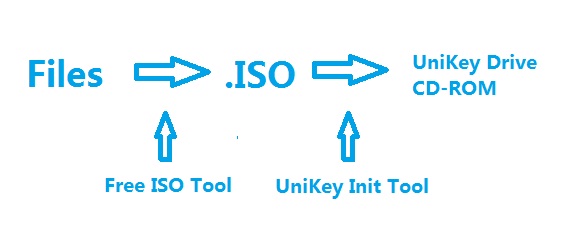
Chart
Source Files
The source files for burning into UniKey Drive CD-ROM can be any types as you want.
The best solution is to use the protected application as the source files, and then you only need to send the UniKey Drive dongles stored with your protected software to your end users.
In order to create .ISO file, we can use some free ISO create Tool, such as Free ISO Creator. These tools will allow us to create .ISO file and inside of this .ISO file we could store the files we want.
UniKey Init Tool is inside of the UniKey Drive SDK, under the directory of /Utilities/
Inside of Settings Page, we could add the .ISO file to the Virtual CD-ROM and this tool will automatically burn the .ISO to the UniKey Drive Virtual CD-ROM.
(For more information on UniKey Drive Init Tool, please refer the UniKey Drive Init Tool article)


